
Table of Contents
Operating Instructions for Omni2 and Omni2P Conference Room Bluetooth Microphones
- Judy
- Feb 9, 2026
Common Functions and Operations of Omni2 and Omni2P
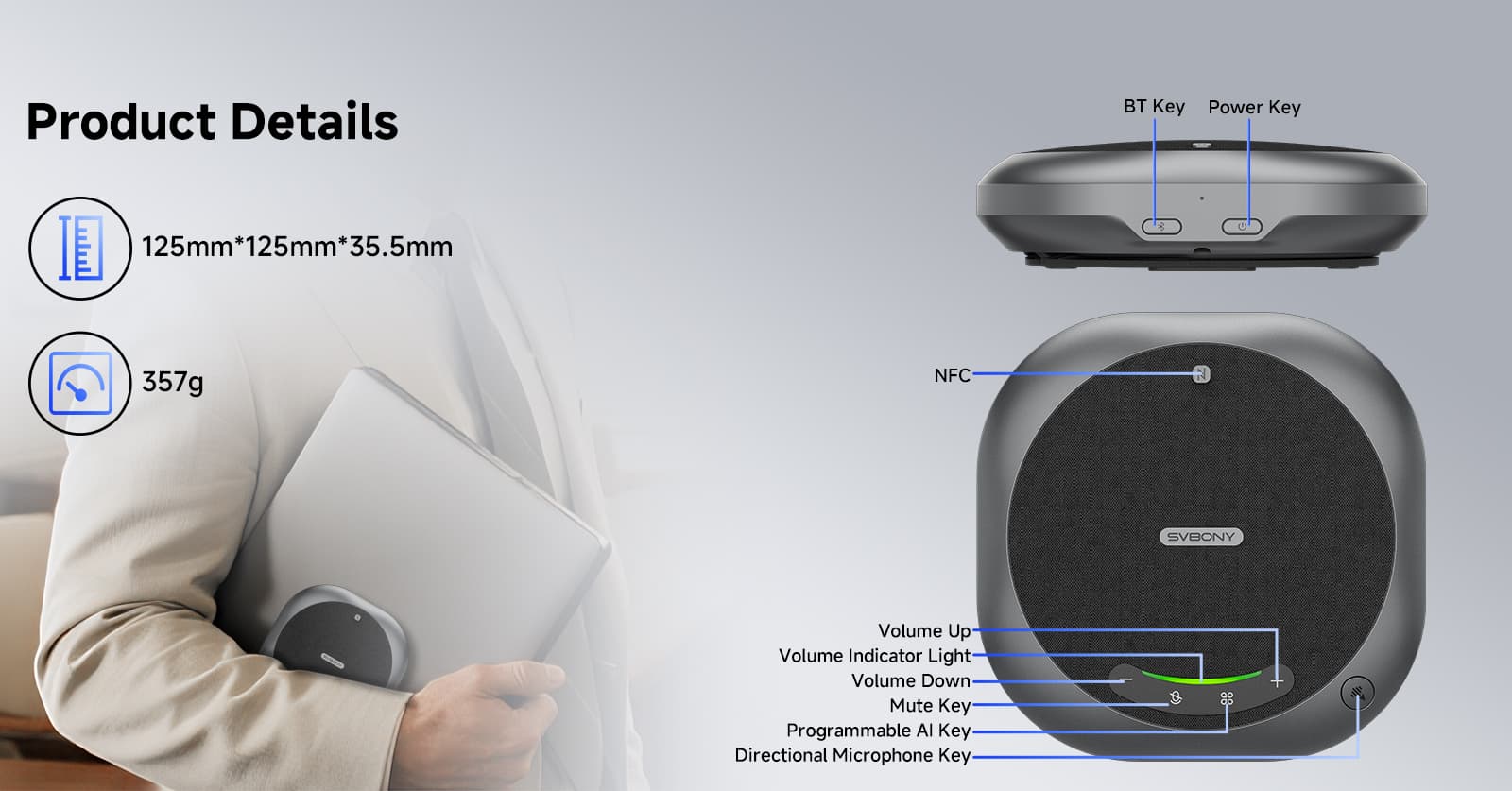
Powering on/off the 360° Omnidirectional Microphone
1. With the microphone off, press and hold the power button for 3 seconds to power on the main unit;
2. With the microphone on, press and hold the power button for 3 seconds to power off the main unit.
Volume Adjustment for Multi-Compatibility Microphones
1. With the Omni2 or Omni2P microphone powered on, briefly press the Volume Up button to increase the volume.
2. With the Omni2 or Omni2P microphone powered on, briefly press the Volume Down button to decrease the volume.
Bluetooth Connection
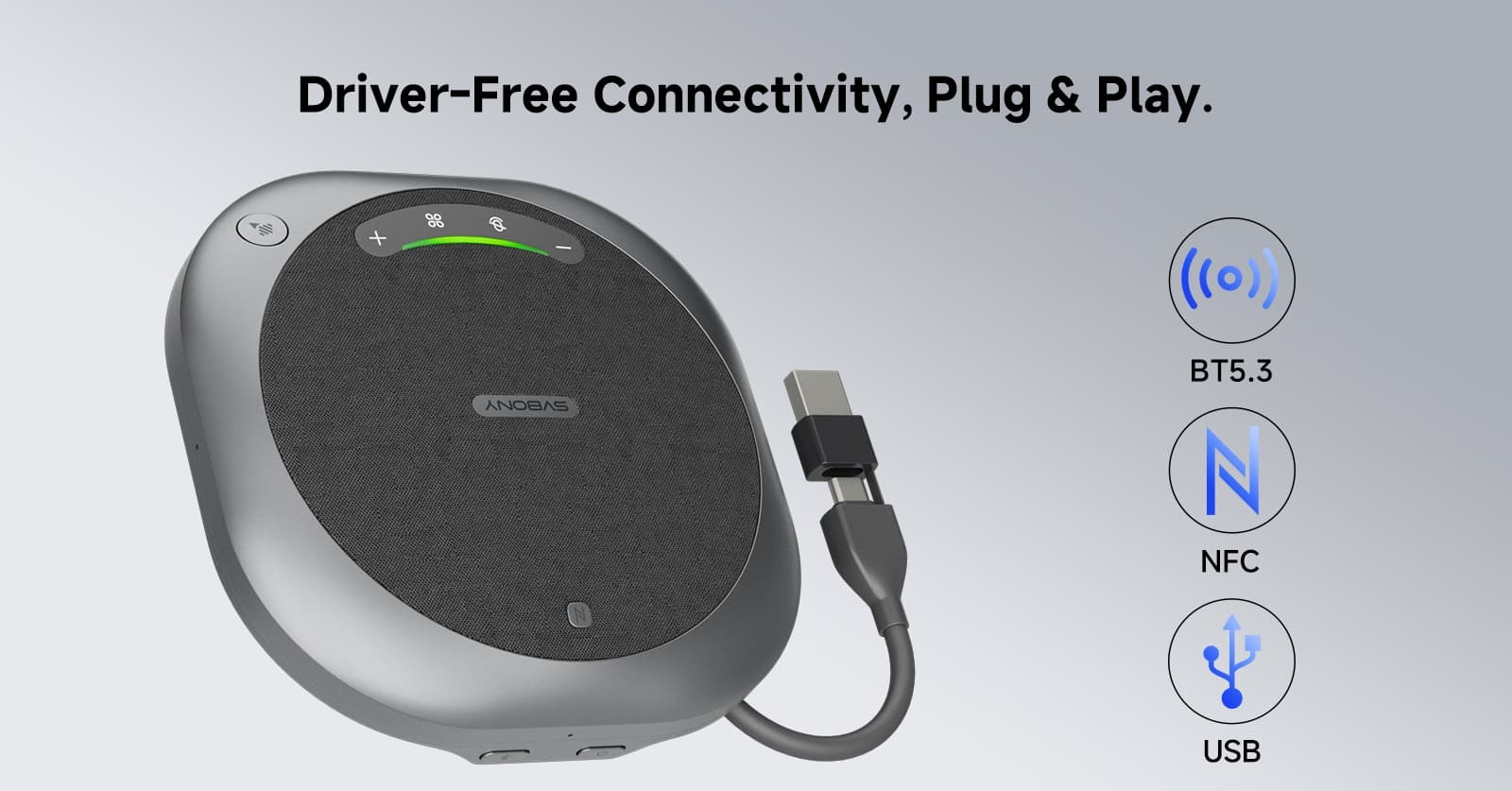
1. After powering on the device, press and hold the Bluetooth button for 3 seconds until the Bluetooth indicator light flashes blue. Then, turn on your computer's Bluetooth function and search for the Bluetooth device "SV***-Omni2/Omni2P-****" to pair and connect. The Bluetooth indicator light will remain solid blue after a successful connection.
2. Alternatively, turn on the NFC function and tap the NFC logo area on the host device to connect via Bluetooth. A solid Bluetooth indicator light indicates a successful connection.
Note: On Windows and Mac systems, the host is compatible with mainstream meeting software such as Zoom, Teams, Google Meet, Tencent Meeting, and DingTalk Meeting. When using these devices, be sure to switch to the microphone and speaker device corresponding to the host device.
USB Connection
Both the Omni2 and Omni2P conference microphones support plug-and-play USB connectivity. Even when powered off, connecting via USB allows the microphone to automatically power on and connect.
Note: On Windows and macOS systems, the host is compatible with mainstream meeting software such as Zoom, Teams, Google Meet, Tencent Meeting, and DingTalk Meeting. When using these devices, ensure you switch to the microphone and speaker corresponding to your host's specifications.
One-Click Mute
1. In communication mode, briefly press the mute button to turn off the microphone; the status indicator light will illuminate red.
2. With the microphone off, briefly press the mute button again to restore communication, turn the microphone on, and the status indicator light will illuminate green.
AI Transcription
Compatible with common AI meeting software such as otter.ai. Download and install the corresponding client software based on your computer system. After installation, open the software and connect the host to your computer via Bluetooth or a USB data cable (recommended). Register and log in to the AI meeting software to begin using it.
Other features of the Omni2P microphone
Programmable AI Button
With the Omni2P AI noise-canceling microphone connected to the computer via USB, first install the SVBONY-AI-Assistant software, then press the AI button. This will open the system's default browser and access the website https://otter.ai.
Notes:
1. If users need to change the default website access, they can edit the config.json configuration file in the same directory as the SVBONY-AI-Assistant software and modify the url field.
2. The SVBONY-AI-Assistant software code is open source; users can define more powerful functions for this AI button as needed.
Omni2P Conference Microphone's Directional Pickup
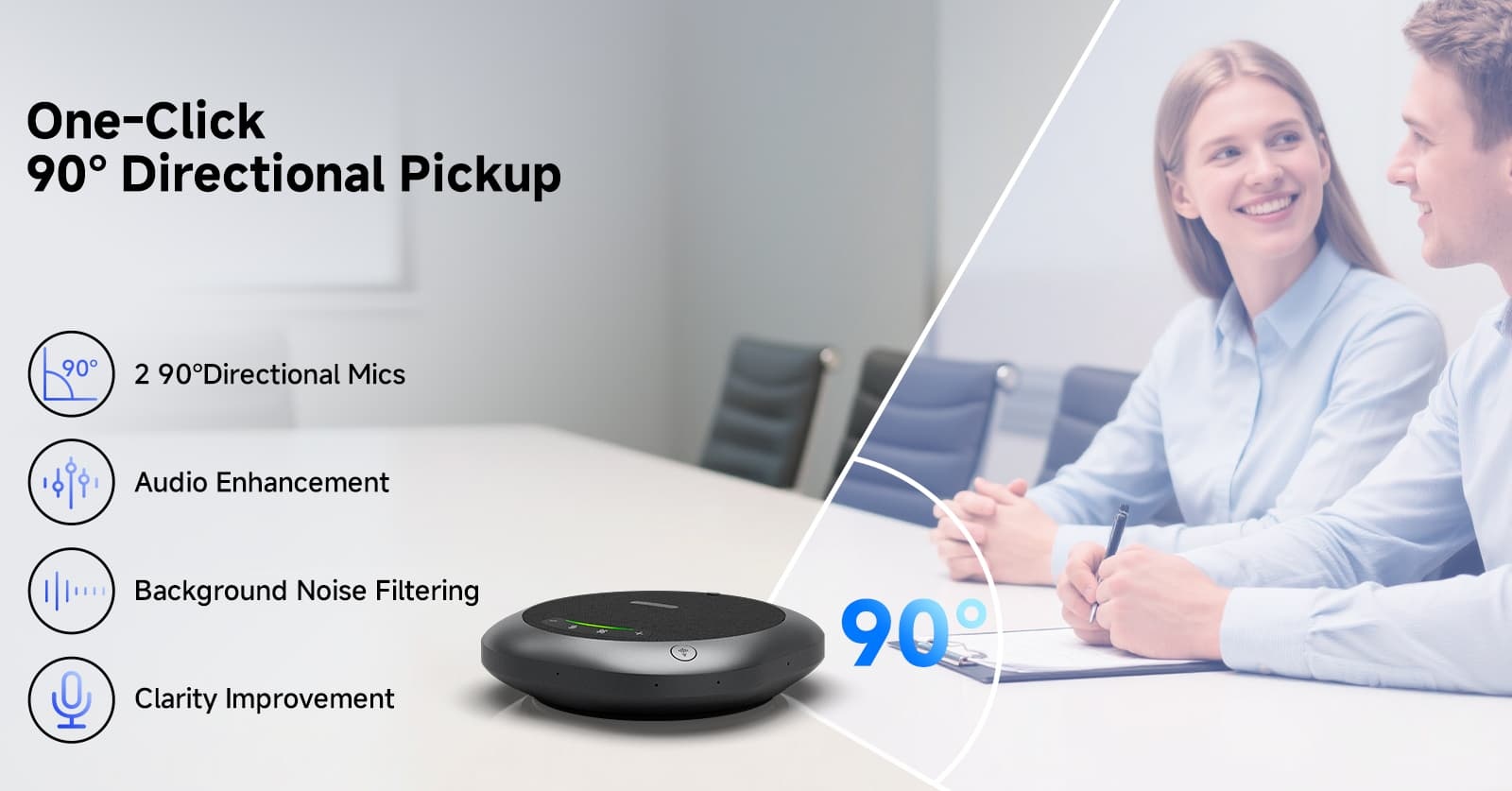
A short press of the directional pickup button switches the host from 360° pickup to 90° directional pickup. When the host is in 90° directional pickup mode, the green light on this button will remain lit.
Frequently Asked Questions:
Volume Discrepancy When Connecting the Host to a Phone via Bluetooth
1. Confirm whether the phone supports Bluetooth audio synchronization. Some Android/HarmonyOS phones do not support volume synchronization.
2. Check if volume synchronization is enabled on your phone. For some phone models, volume settings need to be enabled in the system settings.
When the host is connected to the phone via Bluetooth, ringtones for calls/conferences are not transmitted from the host.
1. Check if the phone's call volume is enabled, or if the device volume is set too low.
2. Check if the device can make calls normally.
3. Check if the phone's call input/output device is the host itself.
When the host is connected to a Windows computer via Bluetooth, there is no sound.
1. When playing music, it is recommended to select a speaker with the host's model number.
2. When making calls or conferences, it is recommended to select a speaker with the host's model number.
When the host is connected to computer conferencing software via Bluetooth, there is no sound.
1. Check if the microphone and speaker of the conferencing software are correctly connected to the host.
2. Check if the computer's audio driver is working properly. It is recommended to restart the computer and try again.
The host does not respond when connected to the computer via USB.
1. Check if the host is in Bluetooth connection mode. Please disconnect the Bluetooth connection first, and then connect the host using a USB data cable.
2. Check if the USB data cable is damaged.
3. Restart your microphone and computer and try again.
Leave a Reply


![[18th Anniversary] 18 Years of Echoing Excellence: Making Communication Easier, Connecting Trust Beyond Borders](https://res.retekess.com/z_file/20260716/retekess-brand-story-making-communication-easier_20260716151044_7682.jpg)
![[18 Years in Wireless Communication] Silent Disco Systems Anniversary Celebration: Top-Selling Headphones & Event Mechanics Revealed!](https://res.retekess.com/z_file/20260713/18-years-in-wireless-communication-silent-disco-systems-anniversary-celebration_20260713175011_5749.webp)
![[Anniversary Carnival] Ding-dong! 18th Anniversary Mega Sale on Guest Paging & Calling Systems: Full Reveal of 12+ Products & Promo Rules!](https://res.retekess.com/z_file/20260713/18th-anniversary-mega-sale-on-guest-paging-calling-systems_20260713175257_0295.webp)
![[Retekess 18th Anniversary Teaser] Tour Guide System Exclusive Perks: Sneak Peek at Event Dates & Mechanics!](https://res.retekess.com/z_file/20260713/retekess-18th-anniversary-tour-guide-system-exclusive-perks--2-_20260713180135_6435.webp)
Follow Us
Pay With


 Google
 Amazon
Comments (0)