
Table of Contents
SVN O1 Wireless Cascading Microphone Operation Instructions
- Judy
- Apr 23, 2026
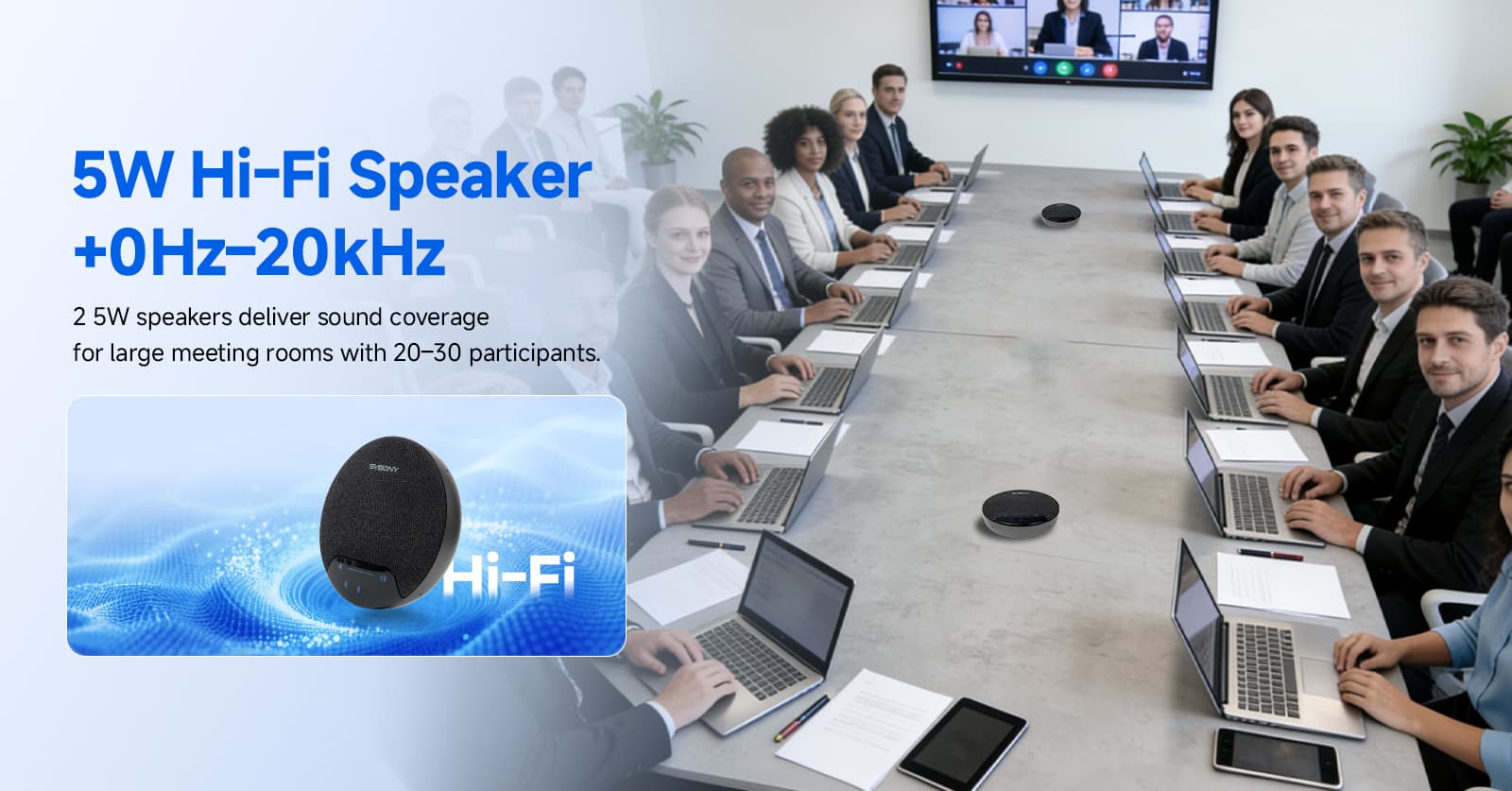
SVN O1 microphone supports cascading pairing and can connect to mobile phones, Bluetooth, USB, etc.
Pairing
If the devices have not been paired before, please follow these steps:
Step 1: Power on the devices;
Step 2: Press and hold the cascading button on either device to enter slave mode. After the white light on the slave cascading button goes out, proceed to Step 3;
Step 3: Simultaneously press and hold the mute buttons on both microphones. The cascading buttons on both devices will simultaneously display an orange indicator light.
You must perform Step 4 within 3 seconds;
Step 4: After pairing is complete, you need to restart both the host and slave devices;
Step 5: Press and hold the cascading button on either device again to complete the cascading connection and use it normally;
Microphone Cascading Settings
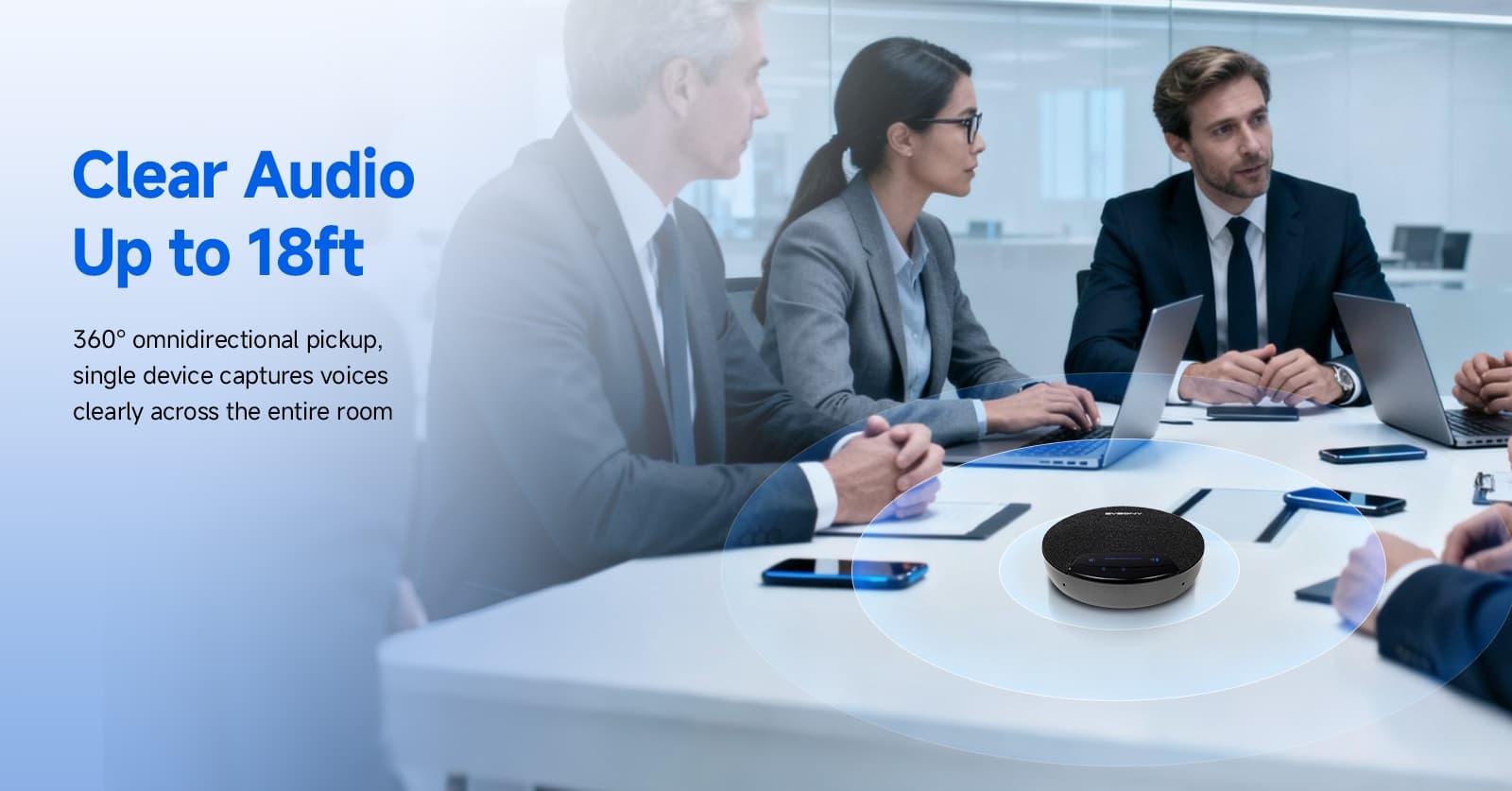
The conference microphone device defaults to host mode upon power-on. When two devices need to be cascaded in a meeting, first press and hold the cascading button on one microphone to switch to slave mode.
The host microphone can then be used by connecting it to the conference terminal device.
Note:
1. Devices that have already been successfully paired have a cascading pairing memory function and do not need to be paired again.
2. Wireless cascading precautions: In the same spatial scenario, if you need to connect a second master-slave unit, the first unit must be powered off or connected at least 10 meters away from the first unit before using it.
3. When the host is not connected to any device, it will power off after 3 minutes.
Note: For broad device compatibility, the host will automatically power on when the USB is connected to a computer device; when Bluetooth is not connected, unplugging the USB cable will automatically power off the unit, and you need to power it on again to use it; when Bluetooth is connected, unplugging the USB cable will not automatically power off the unit.
Featured Function Operation Instructions
AI Transcription
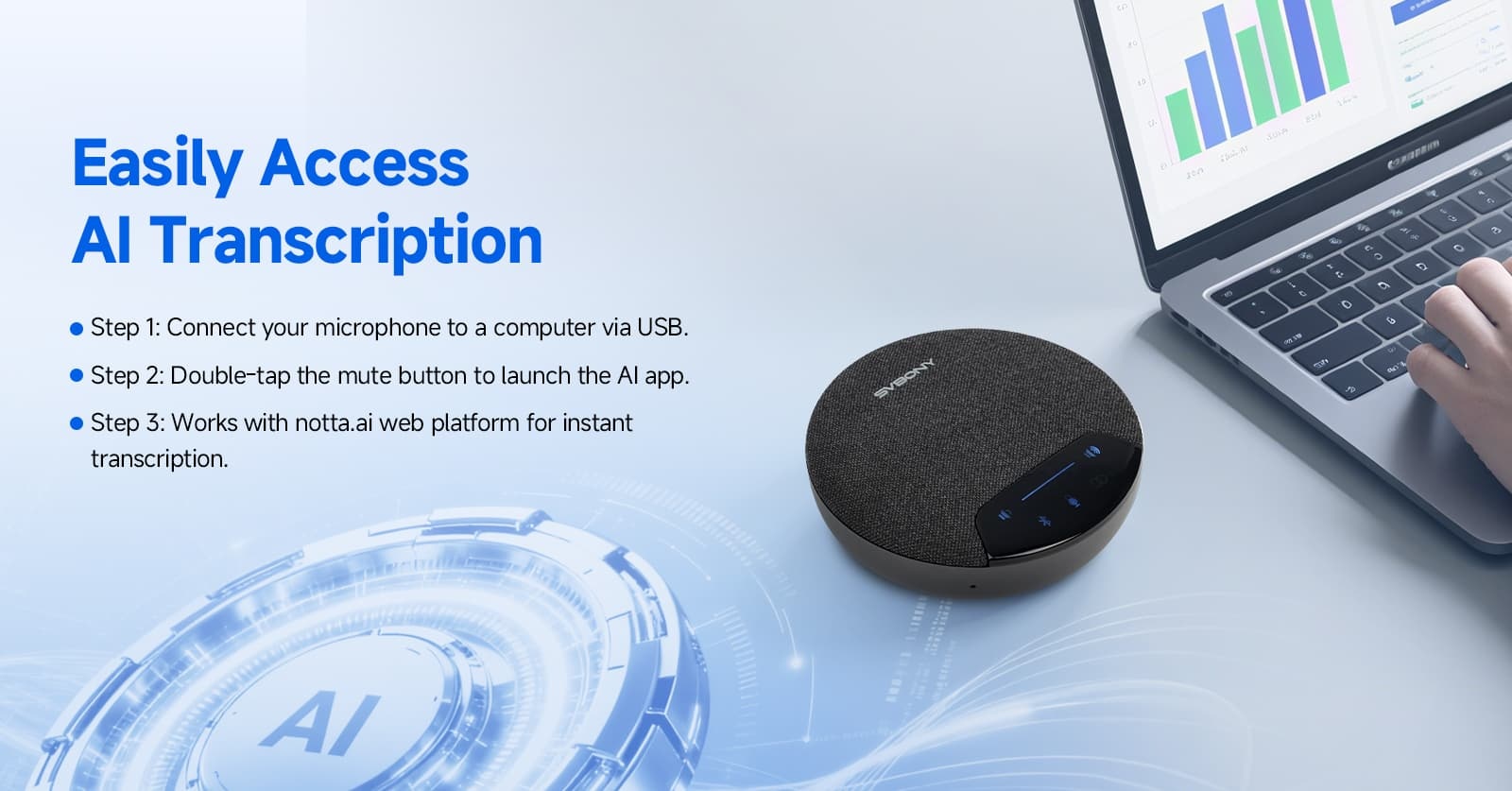
Compatible with common AI conferencing software on the market, such as app.notta.ai. Select the corresponding client software to download and install according to your computer system. After installation, open the software and connect the host to the computer using Bluetooth or a USB data cable (recommended), register and log in to the AI conferencing software to use it.
Programmable AI Button
Double-clicking the microphone mute button (status light color remains unchanged) will launch app.notta.ai. With the host connected to the computer via USB cable, first install the SVBONY-AI-Assistant software, then double-click the microphone mute button. This will open the system's default browser and access the website https://app.notta.ai.
Note 1: To change the default website, users can edit the config.json configuration file in the same directory as the SVBONY-AI-Assistant software and modify the url field.
Note 2: The SVBONY-AI-Assistant software code is open source; users can define more powerful functions for this AI key as needed.
Status Indicator
Bluetooth Key
Short press to answer a call, short press again to hang up. Long press to activate Bluetooth pairing; long press to disconnect Bluetooth after successful pairing. The indicator light flashes blue while Bluetooth is pairing; the blue light stays on after successful pairing.
Speaker Volume Status Indicator
When the speaker is muted, the white light flashes; during normal operation, the white light remains on. The indicator light changes according to the volume.
Microphone Mute Button/Programmable AI Button
When the microphone is muted, the red light remains on; when the microphone is muted, the white light remains on. The programmable AI button is activated by double-clicking the microphone mute button. This function requires the device to be connected via USB and requires the software.
Cascade Indicator
In cascaded connection mode, the host indicator light remains on white, and the slave indicator light remains on orange.
Type-C Port
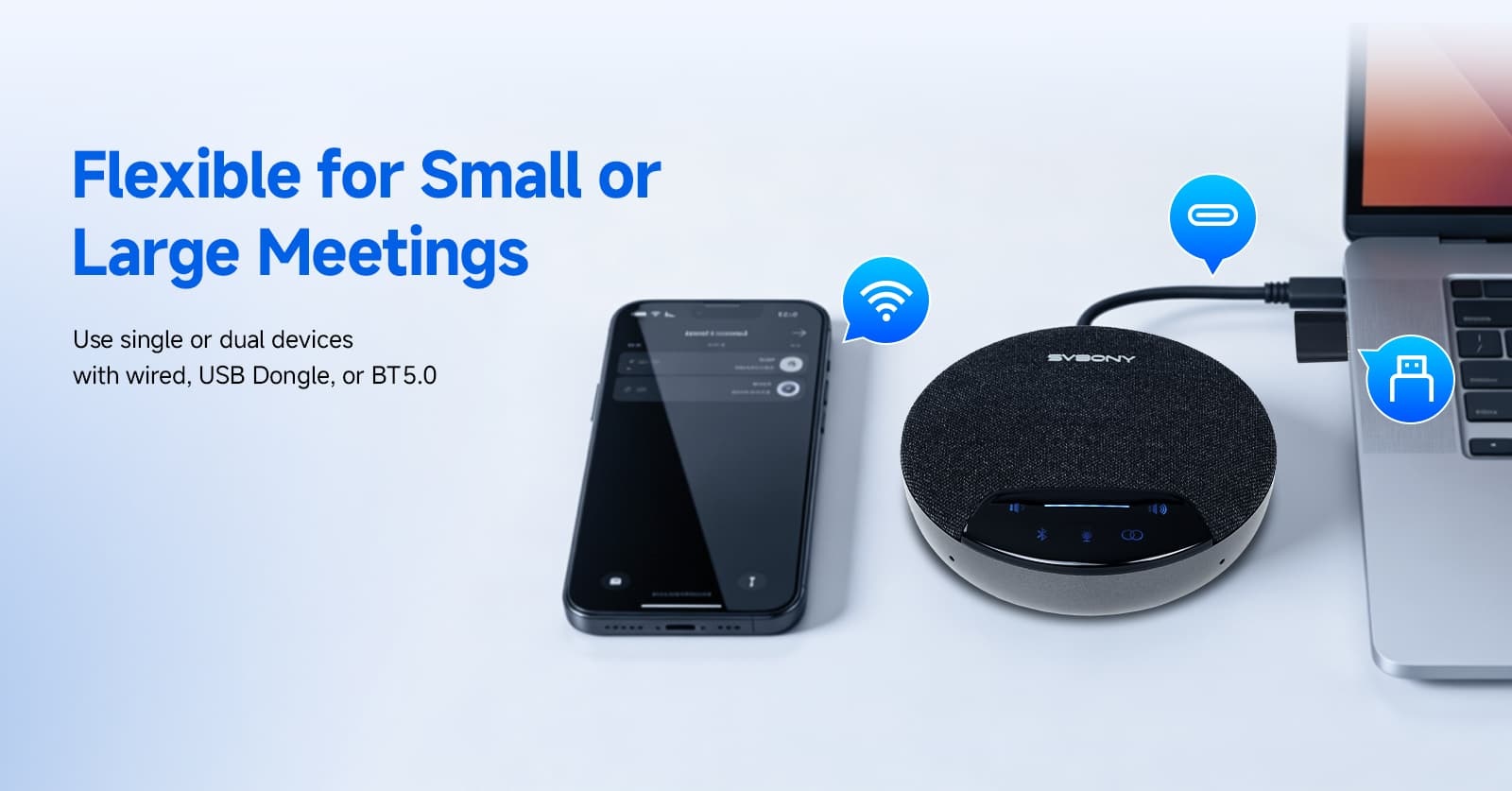
Can be connected to a computer for audio output. When the USB is connected to a computer, the host automatically powers on. When Bluetooth is not connected, unplugging the USB cable will automatically power off the device; please power it on again to use it. When Bluetooth is connected, unplugging the USB cable will not automatically power off the device.
Battery Indicator Light
The indicator light is green when the battery is charging; it turns off when the battery is fully charged; and it turns red when the battery is low.
LED Indicator Lights
Device search and pairing status: flashes rapidly; connection successful: flashes slowly.
Device Operation Buttons
Press and hold for 5 seconds to clear pairing history.
Leave a Reply
![[18th Anniversary] 18 Years of Echoing Excellence: Making Communication Easier, Connecting Trust Beyond Borders](https://res.retekess.com/z_file/20260716/retekess-brand-story-making-communication-easier_20260716151044_7682.jpg)
![[18 Years in Wireless Communication] Silent Disco Systems Anniversary Celebration: Top-Selling Headphones & Event Mechanics Revealed!](https://res.retekess.com/z_file/20260713/18-years-in-wireless-communication-silent-disco-systems-anniversary-celebration_20260713175011_5749.webp)
![[Anniversary Carnival] Ding-dong! 18th Anniversary Mega Sale on Guest Paging & Calling Systems: Full Reveal of 12+ Products & Promo Rules!](https://res.retekess.com/z_file/20260713/18th-anniversary-mega-sale-on-guest-paging-calling-systems_20260713175257_0295.webp)
![[Retekess 18th Anniversary Teaser] Tour Guide System Exclusive Perks: Sneak Peek at Event Dates & Mechanics!](https://res.retekess.com/z_file/20260713/retekess-18th-anniversary-tour-guide-system-exclusive-perks--2-_20260713180135_6435.webp)
Follow Us
Pay With


 Google
 Amazon
Comments (0)