
Table of Contents
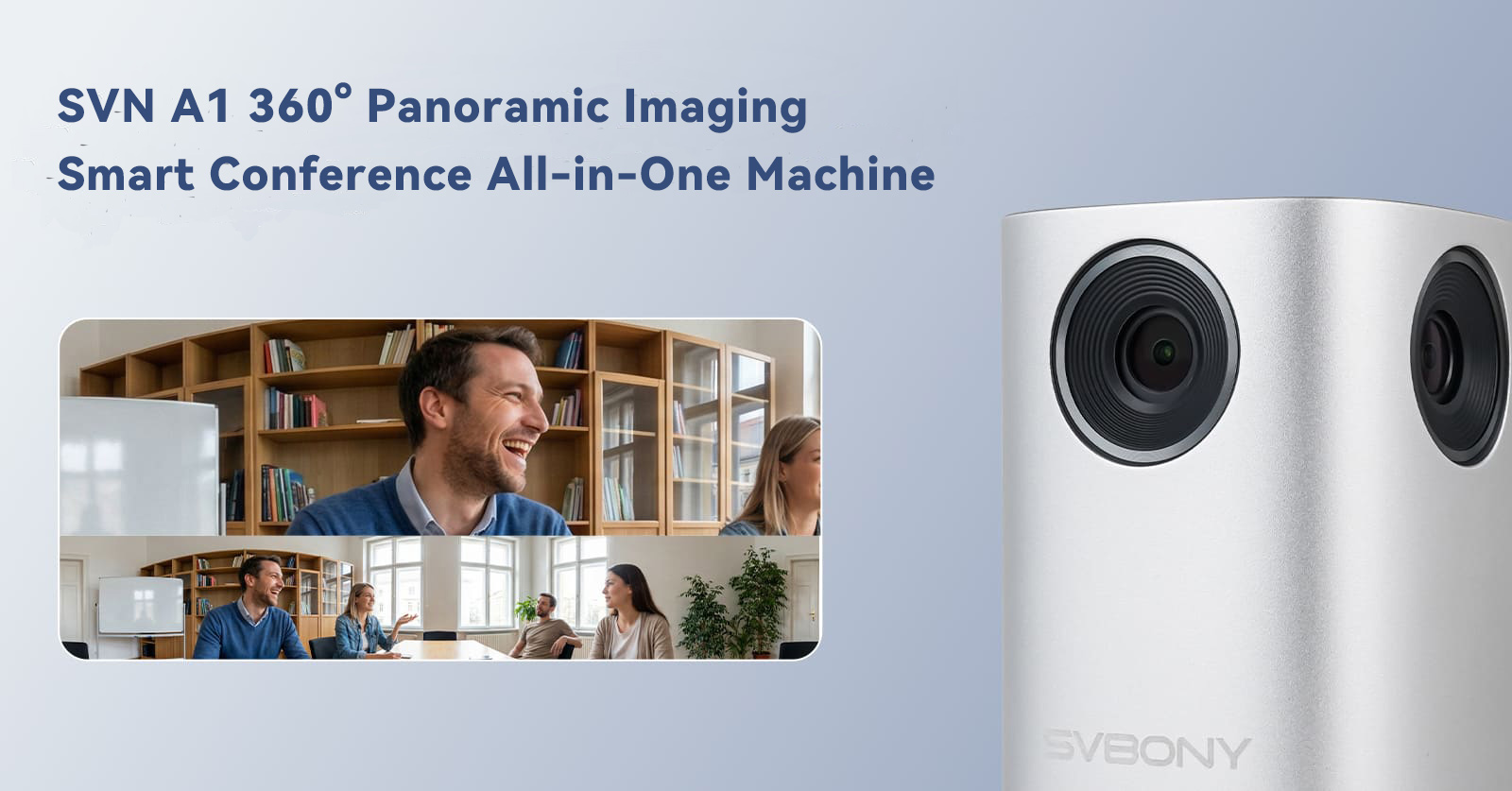
SVN A1 Multifunctional All-in-One Conference System Product Description and Operation
- Judy
- Feb 27, 2026
With the increasing prevalence of modern hybrid office and remote collaboration, a high-efficiency, intelligent, and easy-to-use audio-visual conferencing system has become standard equipment for small meeting rooms and personal offices. To help users better understand and use this all-in-one audio-visual conferencing device, this article will provide a detailed explanation of the core functions and practical operation methods of the SVN A1 device. This will help you quickly get started, fully utilize the device's performance, and easily create a professional, efficient, and immersive meeting communication experience within a 3-5 meter range.
Device Connection
1. Using the included dedicated USB-Type-C cable and 12V 1A adapter, connect the conference all-in-one unit to the computer and power supply. Power on the device.
2. After powering on, the ring indicator light and mute button will illuminate blue. Open the conference software and start the meeting. Select "360 CAM" for the conference camera to switch to the all-in-one unit's camera.
3. After connecting the all-in-one unit to the computer, install and open the included "360 CAM Studio" software. Select "Studio Camera" in the meeting to switch to the app's camera.
Function Operation Instructions
1. Powering on the All-in-One Unit
The conference all-in-one unit powers on when connected to a computer or other device via USB. The mute button will illuminate blue when powered on.
Note: The adapter power supply only powers the audio module. When connecting to a computer or other device solely via USB, the view will be usable, but sound positioning will not be possible.
2. One-Click Mute
When the audio output of your computer or other device is set to the all-in-one unit, click the mute button. The mute button will turn red, stopping audio output. Click the mute button again; it will turn blue, restoring audio output.
3. Mode Switching
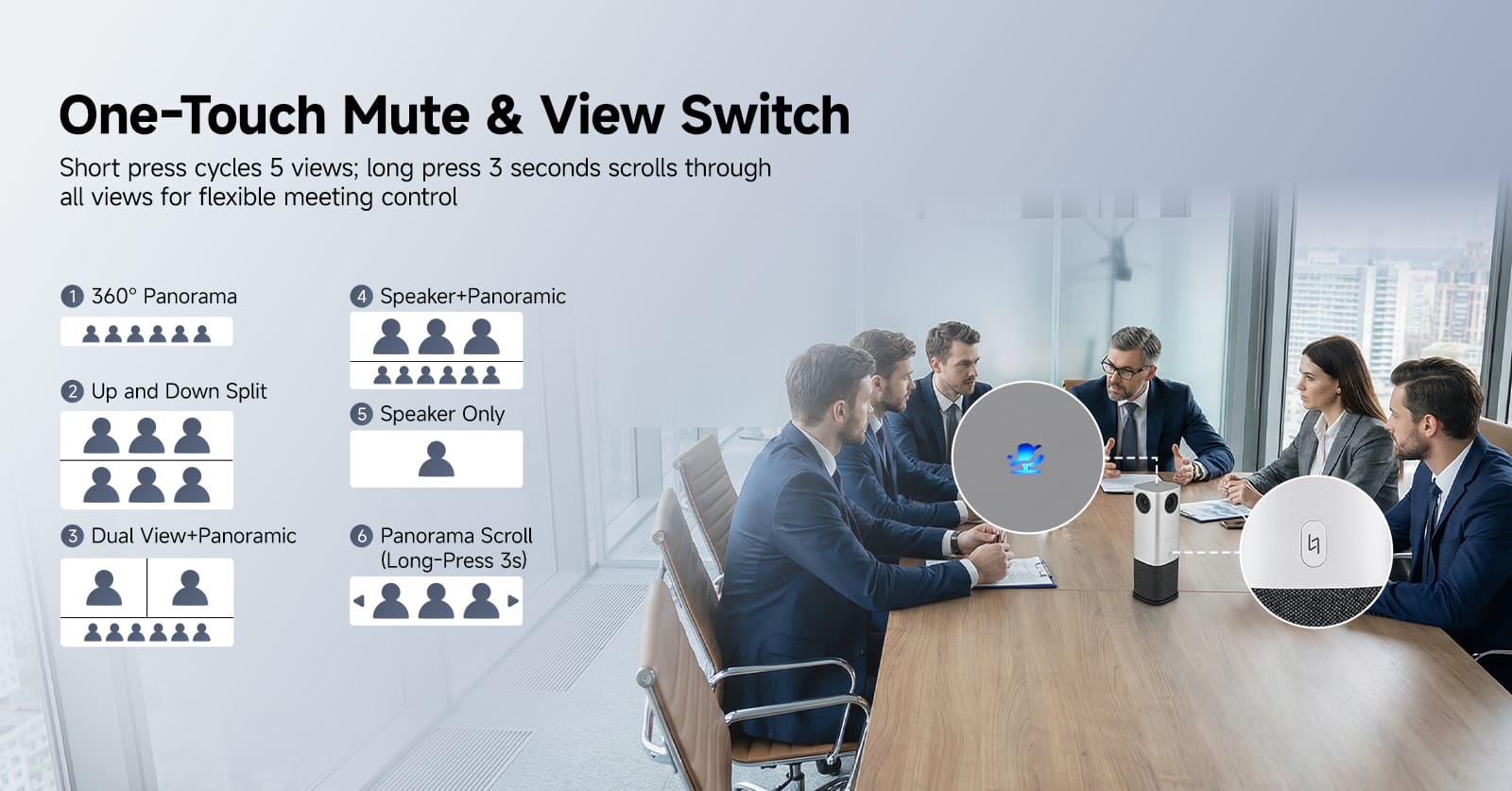
Selecting the 360 CAM camera in the meeting will switch the camera to the all-in-one unit. A short press of the all-in-one unit's mode button allows you to switch between five modes: Panorama, Up and Down Split, Composed, Spearker1, Speaker2, and Panning.
|
Modes |
Mode Descriptions |
|
Panorama Mode |
Mode 1: Default panoramic mode, 360° panoramic display |
|
Upward and Downward Slicing |
Mode 2: Vertical split, displaying the image vertically |
|
Combined Sound Positioning |
Mode 3: Top section: Two views displayed for sound localization.
Bottom section: Panoramic display.
Note: Audio is activated when powered by the adapter, enabling sound localization. The two views switch according to the audio panel prompts; otherwise, this will not work. |
|
Sound Positioning 1 |
Mode 4: Top section: Presenter display.
Bottom section: Panoramic display.
Note: Audio is activated when powered by the adapter, enabling sound localization. The top view switches according to the audio panel prompts; otherwise, this will not work. |
|
Sound Positioning 2 |
Mode 5: Only presenter displayed.
Note: Audio is activated when powered by the adapter, enabling sound localization. The view switches according to the audio panel prompts; otherwise, this will not work. |
|
Horizontal Movement |
Mode 6: Long press for three seconds to scroll through the entire view. |
Software App Settings
Software Used: 360 CAM studio.
Open 360 CAM studio. After entering the meeting, select "Studio Camera" to switch to this software.
All-in-one machine is compatible with the following meeting platforms: Zoom, Cisco Webex, Google Meet, and Microsoft Teams.
|
App Interface Functions |
Functionality Exclusivity |
|
Mode Switching |
Open the meeting software, select the corresponding camera mode, and the image will be displayed on the shrunk software screen. You can switch modes as follows: Compose Focus Grid Body fit Speaker Top-Down |
|
Edit/Control |
Edit: (Settings above/Right-click within the screen) Detect Face Face Tracking Clean all: Turn off face tracking Control: Image mirror Detect Face Face Tracking |
|
Lens Image Adjustment |
Up: Camera up Center: Camera center Down: Camera down The layout of the center screen can be adjusted. Click OK to complete the settings, or click Cancel to cancel. |
|
Image Selection |
Left-click to select a frame.Up to 8 frames can be selected below to display/expand the display area. Different modes have different effects. Right-click within the box to select: Face Tracking, Pin (Preference Icon), or Delete. You can also delete using the keyboard. |
|
Image Parameter Settings |
Effect: Reset to factory settings Normal: Normal mode Middle: Medium brightness mode High: High brightness mode Custom: Settings mode |
|
Image Adjustment (Audio Adjustment) |
EV Adjust: -2 to +2; Flicker: Auto, 50Hz, 60Hz; Lighting: 0-100; 3D NR: 0-100; Gamma: 0-10; |
|
Compose |
Mode 1: Panoramic display (top image). Bottom image: Real-time tracking with face tracking enabled, allowing automatic switching between 1-4 people. |
|
Focus |
Mode 2: Focus on multiple people in a single frame; Face tracking automatically expands the frame as the person moves |
|
Grid |
Mode 3: Multi-person zoom-in capture; Face tracking supports up to four frames for real-time tracking and switching. |
|
Body fit |
Mode 4: Use the yellow box to select the image; Face tracking is enabled with the small box in the lower right corner for person capture. |
|
Speaker |
Mode 5: Top image: Displays the speaker, with Face tracking enabled to center the speaker in real time; Bottom image: Panoramic view |
|
Top-Down |
Mode 6: Divides the panoramic view into upper and lower frames for display (no person tracking) |
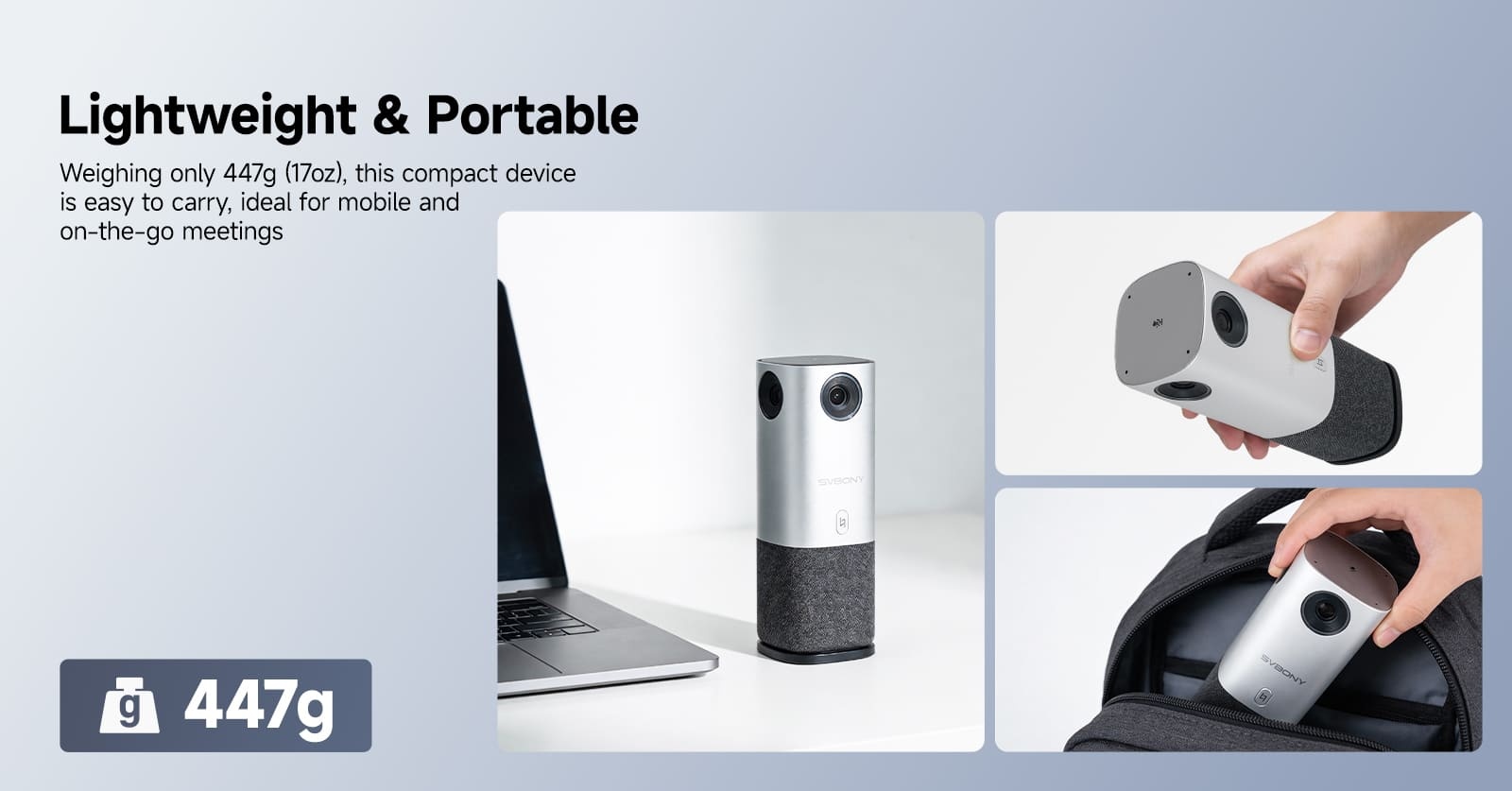
Click to learn more about the SVN A1 Smart Meeting All-in-One Machine.
Leave a Reply


![[18th Anniversary] 18 Years of Echoing Excellence: Making Communication Easier, Connecting Trust Beyond Borders](https://res.retekess.com/z_file/20260716/retekess-brand-story-making-communication-easier_20260716151044_7682.jpg)
![[18 Years in Wireless Communication] Silent Disco Systems Anniversary Celebration: Top-Selling Headphones & Event Mechanics Revealed!](https://res.retekess.com/z_file/20260713/18-years-in-wireless-communication-silent-disco-systems-anniversary-celebration_20260713175011_5749.webp)
![[Anniversary Carnival] Ding-dong! 18th Anniversary Mega Sale on Guest Paging & Calling Systems: Full Reveal of 12+ Products & Promo Rules!](https://res.retekess.com/z_file/20260713/18th-anniversary-mega-sale-on-guest-paging-calling-systems_20260713175257_0295.webp)
![[Retekess 18th Anniversary Teaser] Tour Guide System Exclusive Perks: Sneak Peek at Event Dates & Mechanics!](https://res.retekess.com/z_file/20260713/retekess-18th-anniversary-tour-guide-system-exclusive-perks--2-_20260713180135_6435.webp)
Follow Us
Pay With


 Google
 Amazon
Comments (0)