
Table of Contents
ST2 Wireless Video Transmission System Product Operation Instructions
- Judy
- Jan 15, 2026
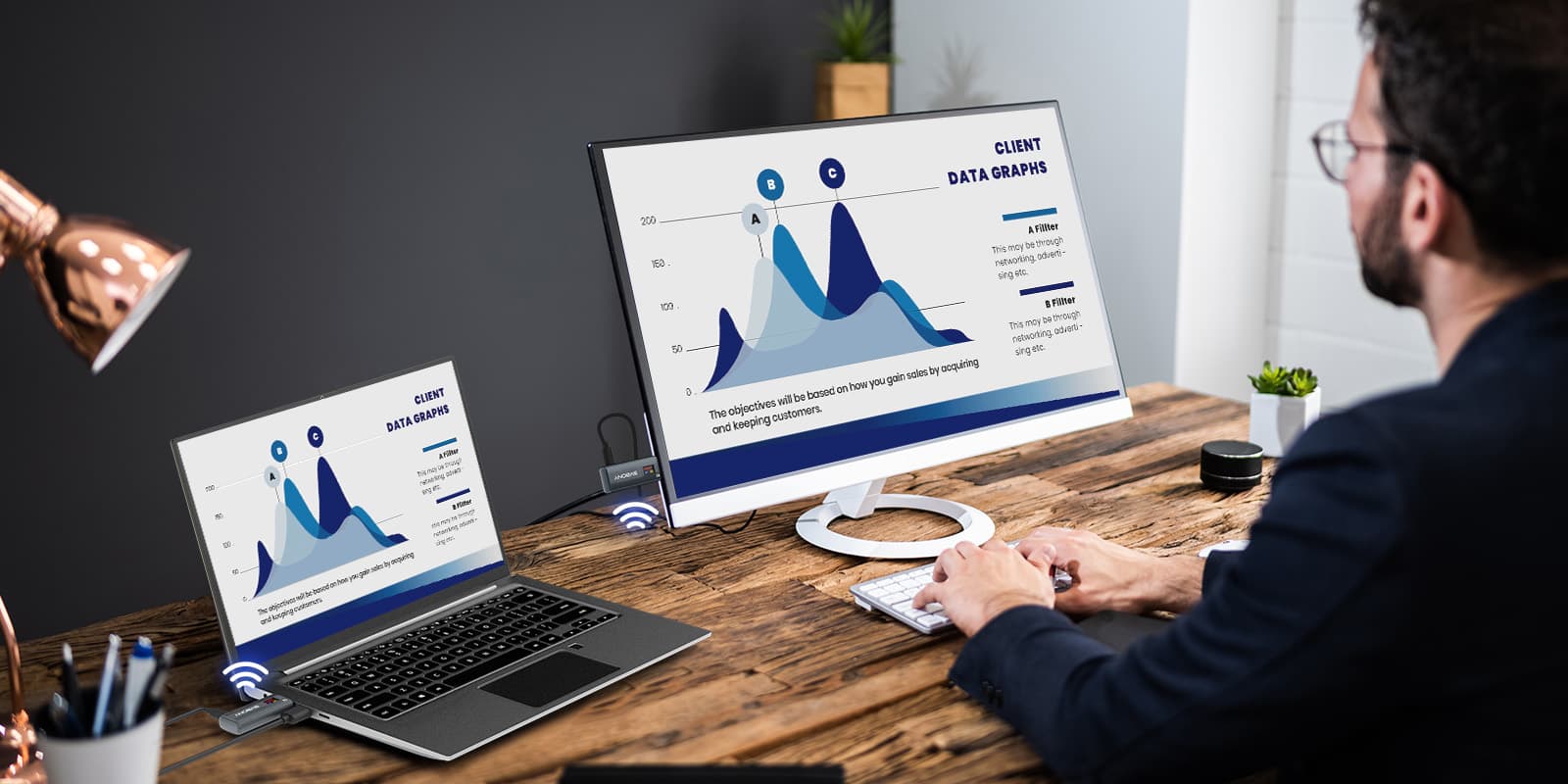
TransAir1, as a wireless HDMI transmission system, transmits video signals with audio from the signal source to the receiving device or system in real time and stably.
The wireless transmitter can connect to computers, cameras, players, etc., while the receiver can connect to monitors, TVs, projectors, etc.
It can be used in conference rooms, studios, and mobile shooting scenarios such as stages, meeting your needs in professional fields such as business, education, live streaming, and medicine.
Product Operation and Pairing:
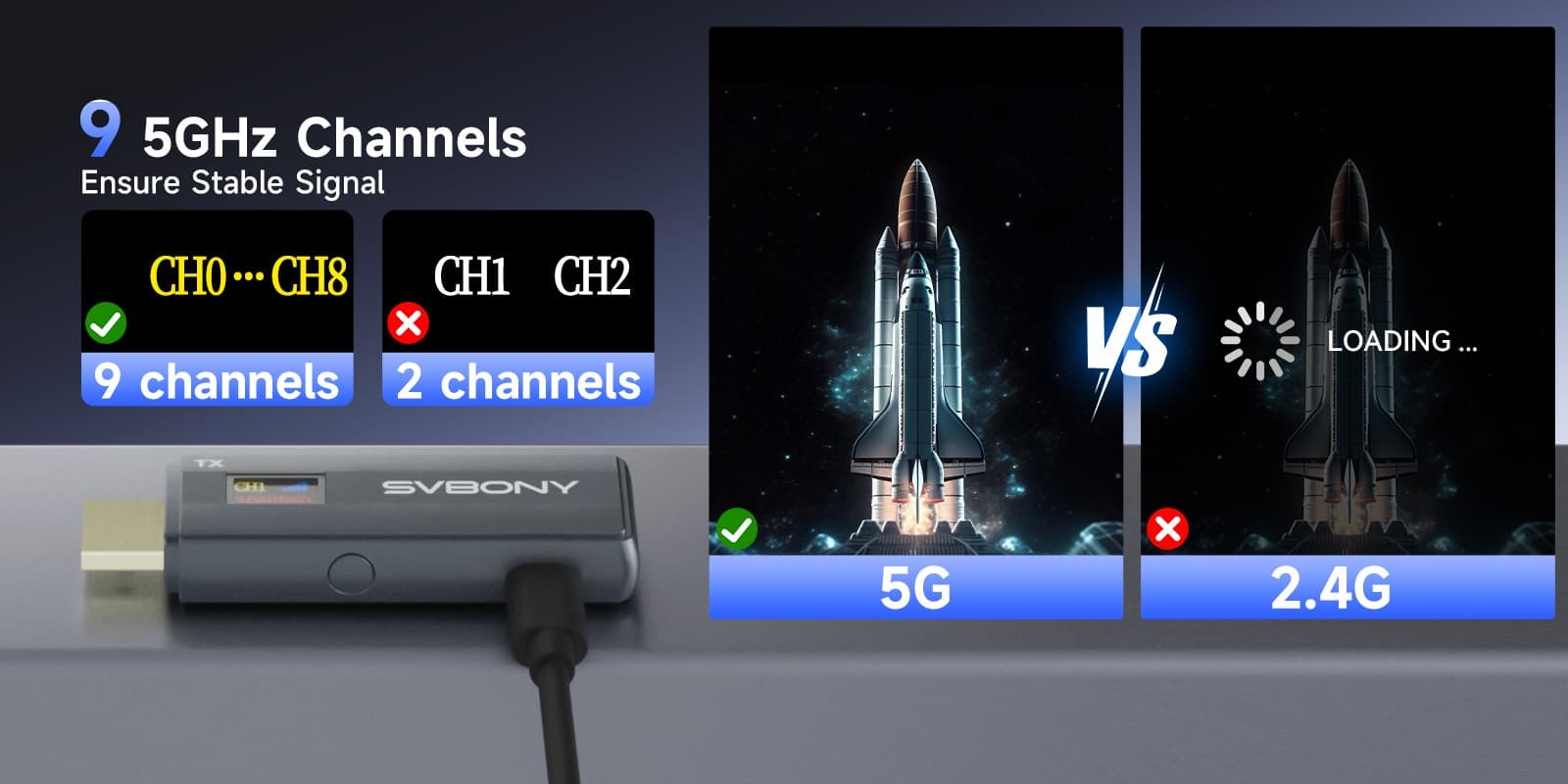
Pairing: The product is pre-paired before leaving the factory. The receiver automatically pairs when the transmitter switches channels. The transmitter can independently select 9 channels.
Usage:
1. Plug the ST2 receiver into the HDMI port of a display device such as a monitor or TV.
2. Connect the Type-C port of the receiver to the charging cable, and then plug in the power adapter (5V2A)/or another USB port for power supply.
3. Adjust the signal source of the monitor or TV to the corresponding signal port of the receiver.
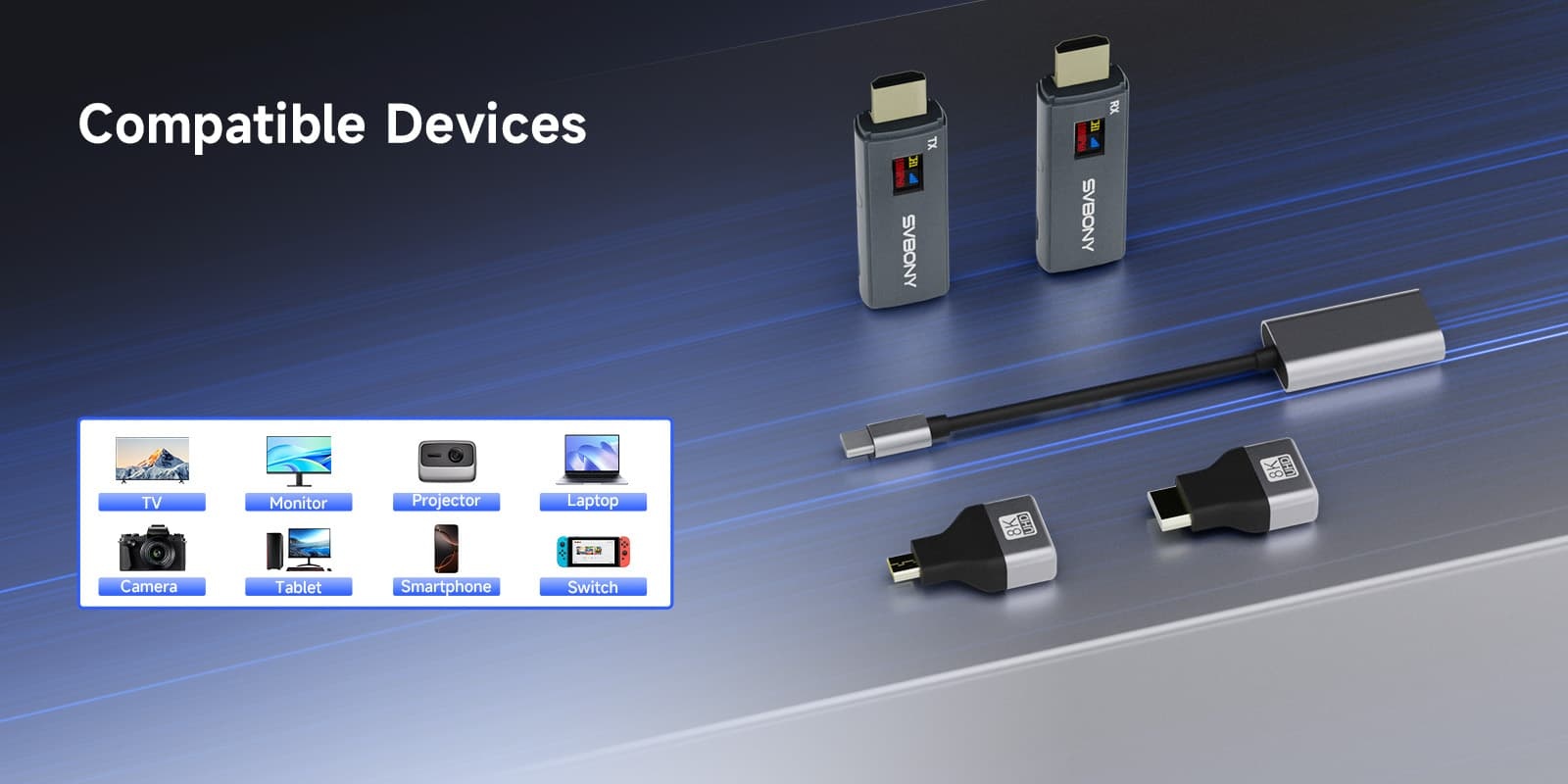
4. Connect the ST2 transmitter to a computer, laptop, camera, or other HDMI output device. If there is no supported standard HDMI port, use the Mini-HDMI/Micro-HDMI/Type-C to HDMI adapter included in the box.
5. Connect the Type-C port of the transmitter to the charging cable, then plug in the power adapter (5V2A)/or other USB port for power.
6. A successful connection is indicated by normal signal icons and video source information displayed on both the transmitter and receiver.
Troubleshooting:
1. If the device screen displays "NOVIDEO" after connection, check that your computer system is active. If the problem persists, check your computer's display settings and adjust them to: Duplicate Mode/Extended Mode.
2. If the transmitter screen displays NORX or the receiver screen displays NOTX, and the signal strength is marked with an "x," the transmitter and receiver are not connected. Try re-pairing the devices.
Frequently Asked Questions:
1. Q: The transmitter and receiver cannot connect. How do I re-pair them?
A: After powering on both the transmitter and receiver, press and hold the buttons on both the transmitter and receiver for more than 5 seconds within 5 minutes, then release. Repeat this process once more (press and hold for another 5 seconds and then release). The product will automatically pair.
2. Q: After connecting the devices, the display device does not show the projected content.
A: Please check if the receiver is powered on (indicator light is on) and connected to the HDMI port of the display device, and switch to the corresponding signal source. If the problem persists, try changing the HDMI port.
3. Q: After connecting the devices, the receiver screen is blurry.
A: If the transmitter is connected to a computer and the receiver is connected to an extended screen with a blurry display, please adjust the resolution of the extended screen to ensure that the resolution is consistent between desktop mode and signal activity mode.
Leave a Reply






![[18th Anniversary] 18 Years of Echoing Excellence: Making Communication Easier, Connecting Trust Beyond Borders](https://res.retekess.com/z_file/20260716/retekess-brand-story-making-communication-easier_20260716151044_7682.jpg)
![[18 Years in Wireless Communication] Silent Disco Systems Anniversary Celebration: Top-Selling Headphones & Event Mechanics Revealed!](https://res.retekess.com/z_file/20260713/18-years-in-wireless-communication-silent-disco-systems-anniversary-celebration_20260713175011_5749.webp)
![[Anniversary Carnival] Ding-dong! 18th Anniversary Mega Sale on Guest Paging & Calling Systems: Full Reveal of 12+ Products & Promo Rules!](https://res.retekess.com/z_file/20260713/18th-anniversary-mega-sale-on-guest-paging-calling-systems_20260713175257_0295.webp)
![[Retekess 18th Anniversary Teaser] Tour Guide System Exclusive Perks: Sneak Peek at Event Dates & Mechanics!](https://res.retekess.com/z_file/20260713/retekess-18th-anniversary-tour-guide-system-exclusive-perks--2-_20260713180135_6435.webp)
Follow Us
Pay With


 Google
 Amazon
Comments (0)